Overview
Kerio Outlook Connector Offline Edition (KOFF) is a Microsoft Outlook extension that you can use to manage your Kerio Connect email, events, contacts, and tasks in Microsoft Office Outlook email client.
The Offline Edition synchronizes all changes with Kerio Connect once you reconnect. KOFF caches all the account data on the local PC. This article provides step-by-step instructions on how you can install the Kerio Outlook Connector extension.
Prerequisites
- Visit the System requirements overview (End-User tab) or the Kerio Connect System Requirements for End-Users to make sure that you are on a supported OS and Outlook version/edition
📌 Outlook OEM versions and/or Microsoft Office Student Edition are not supported (Error 28103' or 'Error 28101' While Installing Kerio Outlook Connector); Outlook Classic is also required for KOFF to function. - Make sure that you have a single Office installation in your workstation, as otherwise you will be Unable to Install KOFF Due to Multiple Outlook Installed in the System
- Run the Microsoft Outlook application at least once.
Steps
Installation from the Kerio Connect integration page
- Open the Integration with Windows page from your browser.
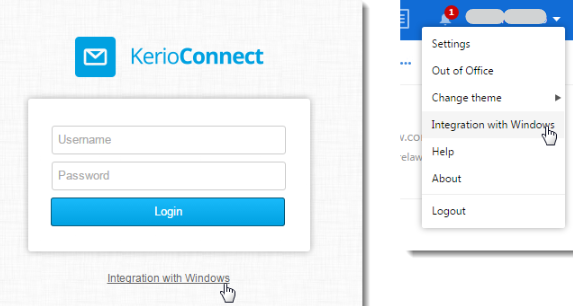
- On the Kerio Connect Client Login page, click on the Integration with Windows link, or click on your name in Kerio Connect Client and select Integration with Windows.
- On the Kerio Connect Client Login page, click on the Integration with Windows link, or click on your name in Kerio Connect Client and select Integration with Windows.
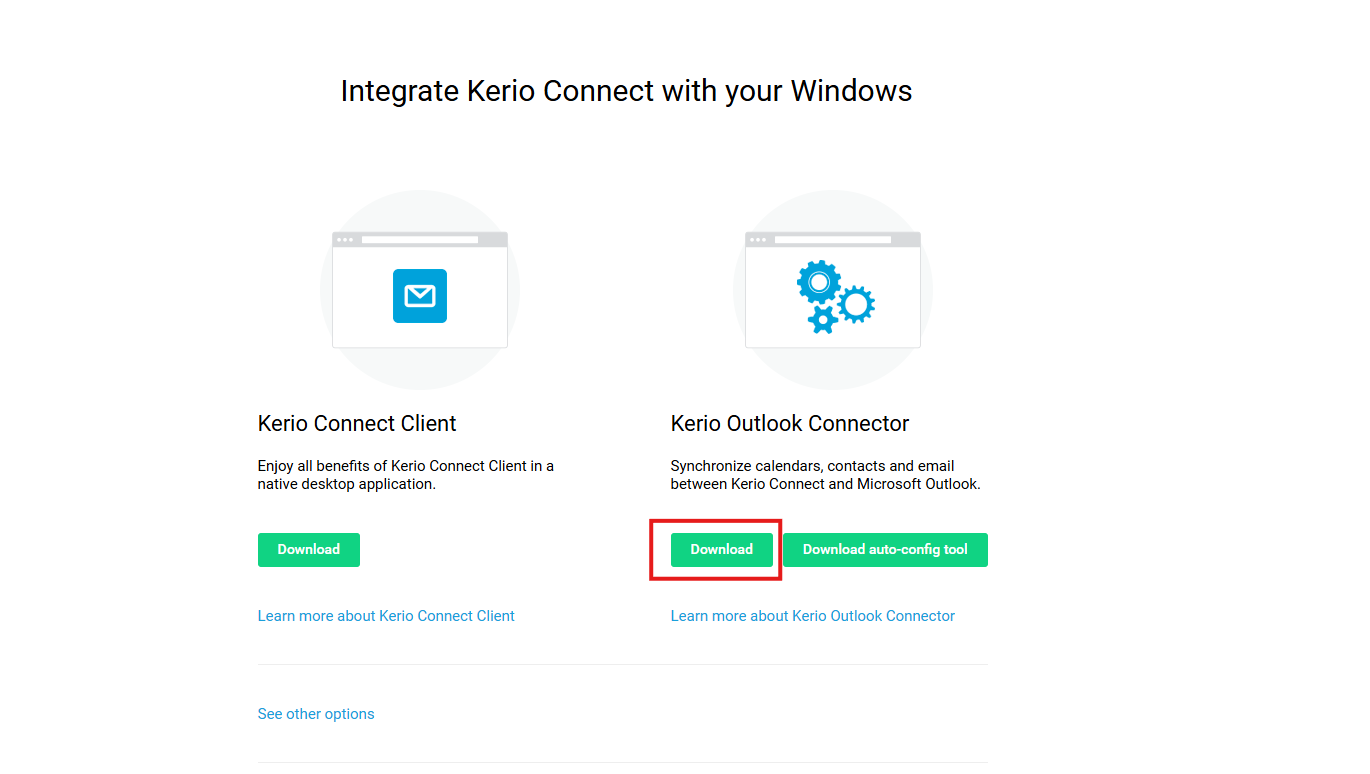
- Click on Download Kerio Outlook Connector.
Note: Download auto-config tool automatically configures the user account. It requires username and password from the Kerio Connect account and KOFF already installed on the PC.
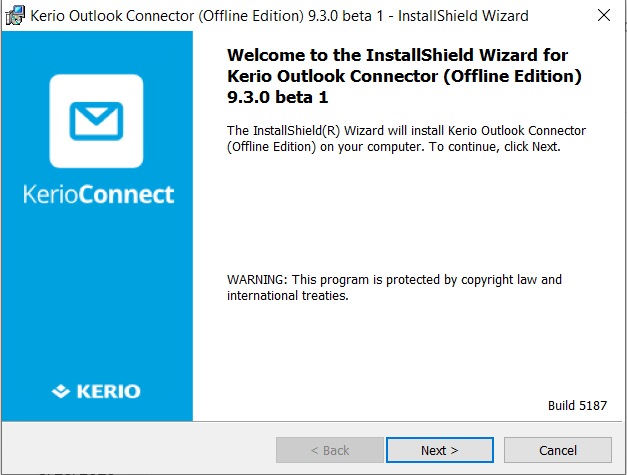
- A standard installation wizard is used to install Kerio Outlook Connector.
- Click Next to proceed with the installation.
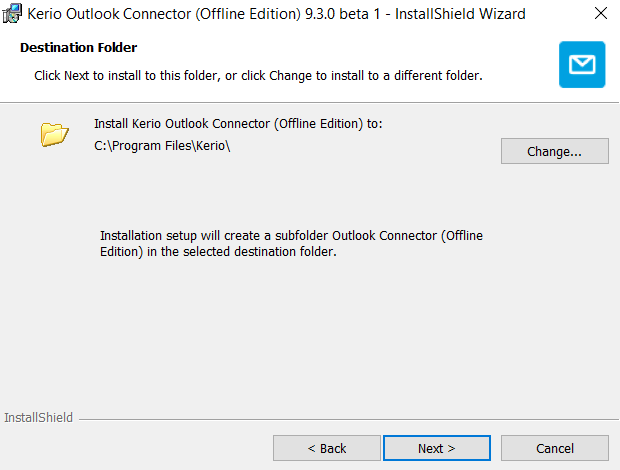
- (Optionally) Change the default installation directory.
- Click Install.
- Once installed, click Finish to close the window.
- Click Next to proceed with the installation.
- After the installation, you must create a profile for each user by following the steps for:

Installation using manually downloaded installer
The above procedure will always download a KOFF EXE file matching the version of the server. In some cases, you may want to install a different version than the server's, or you need the .MSI file.
- Navigate to http://download.kerio.com/
- Choose your preferred version from the dropdown
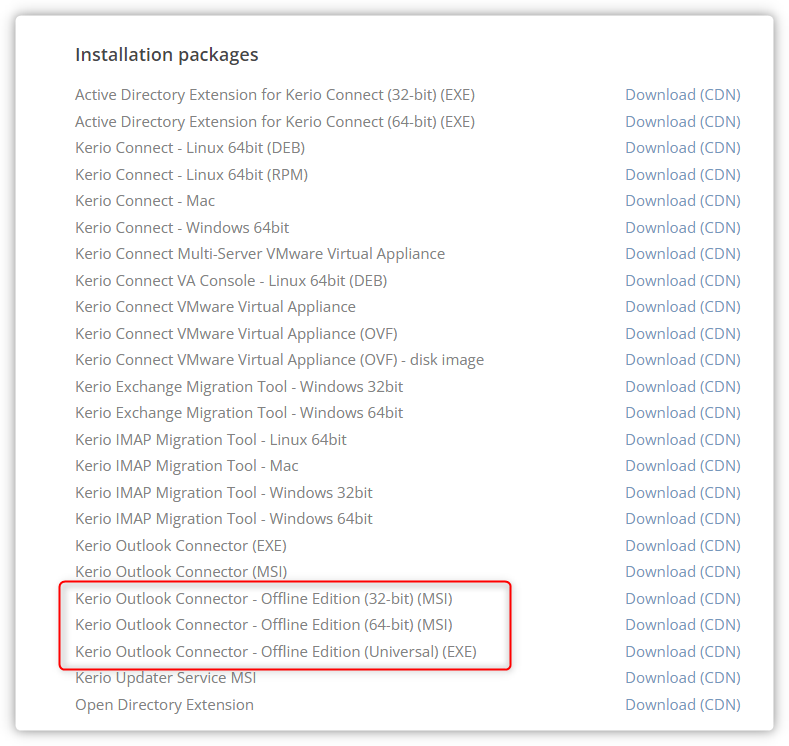
- On the new page that gets displayed, notice that you have 3 options:
- KOFF 32-bit (MSI package)
- KOFF 64-bit (MSI package)
- KOFF Universal (EXE package)
- Download the desired version, while keeping in mind that:
- The EXE file will automatically detect the Outlook architecture and install the required 32-bit or 64-bit version of KOFF
- MSI files are separate, and it is important to remember that the KOFF architecture needs to match the Outlook architecture. For example: Outlook 32-bit installed on Windows 64-bit will require KOFF 32-bit to be installed.
📌 Make sure to select the OFFLINE edition; selecting the simple Kerio Outlook Connector will result in Kerio Outlook Connector Error 28110 and Error 28102.
- Once downloaded, proceed with the installation and follow the onscreen wizard.
- After the installation, you must create a profile for each user by following the steps for:
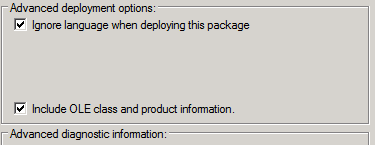
If you install Kerio Outlook Connector as an MSI package remotely on users' computers, check the Ignore language when deploying this package option in Microsoft Active Directory.
Priyanka Bhotika
Comments