Overview
Starting with version 9.4, Kerio Connect includes an embedded ACME v2 client that automates the initial issuance and maintenance of Let's Encrypt SSL certificates. This guide covers how the auto-renewal engine operates internally, network port requirements, interaction with HTTPS security enforcement, the configuration itself and answers common configuration questions.
Technical Renewal Architecture & Lifecycle
Renewal Scan & Trigger Schedule
-
24-Hour Evaluation Cycle: An internal background task scans all stored Let's Encrypt keys (
sslcert/letsencrypt/account.key) once every 24 hours. -
6-Day Renewal Threshold: Renewal is triggered when an active Let's Encrypt certificate has 6 days or fewer remaining before expiration.
-
Challenge Type: KerioConnect uses the ACME HTTP-01 challenge method. (DNS-01 and TLS-ALPN-01 challenges are not supported by the built-in engine).
Renewal Execution Sequence
-
Challenge Request: KerioConnect contacts Let's Encrypt ACME v2 servers and requests a challenge token for configured domain names.
-
Token Placement: KerioConnect temporarily mounts the validation token at:
http://<domain_name>/.well-known/acme-challenge/ -
Remote Verification: Let's Encrypt validation servers attempt an HTTP connection to Port 80 on `` to fetch and verify the token.
-
Certificate Installation: Upon successful validation, the newly issued certificate binary is fetched, signed, and stored in KerioConnect's SSL certificate repository.
-
Key Swap & Cleanup:
-
If the expiring certificate was set as the Default Server Certificate, the new certificate assumes default status automatically without requiring a server reboot.
-
If "Remove old certificate upon renewal" is checked in WebAdmin, the old certificate is deleted from disk.
-
Network Configuration & Security Policy Posture
Port 80 Requirement
Let's Encrypt ACME specifications mandate that initial HTTP-01 challenge attempts arrive on Port 80 (HTTP).
-
Firewall Rule: Inbound TCP traffic on Port 80 must be permitted to reach the KerioConnect host.
-
External Redirects: If an upstream reverse proxy or edge firewall redirects incoming Port 80 requests to Port 443 (HTTPS), Let's Encrypt will follow standard HTTP 301/302 redirects to complete validation.
HTTPS Enforcement ("Require Encrypted Connection")
Administrators can safely enforce global HTTPS encryption across KerioConnect:
-
Automatic Exemption: Setting Security Policy to "Require encrypted connection" forces all WebAdmin and Webmail web traffic to HTTPS (Port 443), except for requests matching
.well-known/acme-challenge/. -
Zero Admin Impact: The system automatically allows HTTP-01 verification tokens through on Port 80 while keeping user communication encrypted.
Configuration
- Navigate to WebAdmin > Configuration > SSL Certificates.
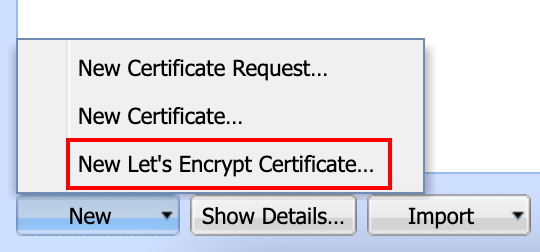
- Select New > New Let's Encrypt Certificate.
- Enter the Hostname for your Mail Server and click OK.
📍 Remember that the provided hostname must be HTTP-accessible. You can generate certificates for any sub-domains, as needed.
- The dialog will load, sending the request to Let's Encrypt. Once it has finalized the creation, a new certificate will appear for the domain/hostname that you specified:
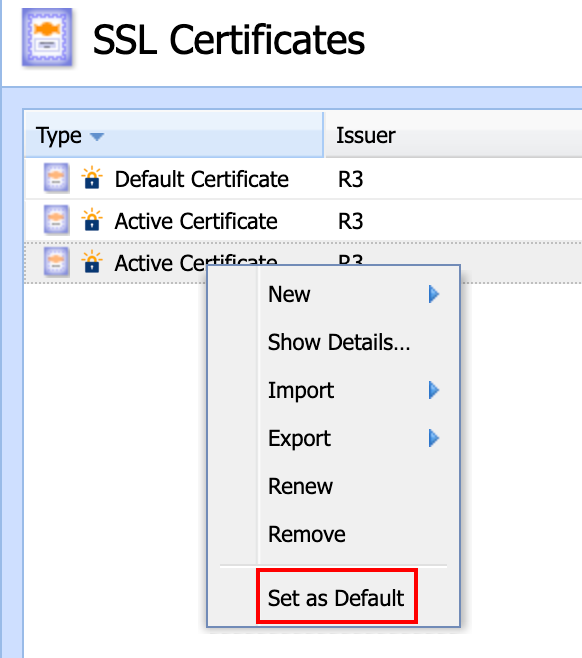
- As with other certificates within Kerio Connect, once generated, you can set your new Let's Encrypt certificate as the Default Certificate by right-clicking and choosing "Set as Default." Once set as the default, it is suggested to remove any expired or self-signed certificates to avoid conflicts.

Testing
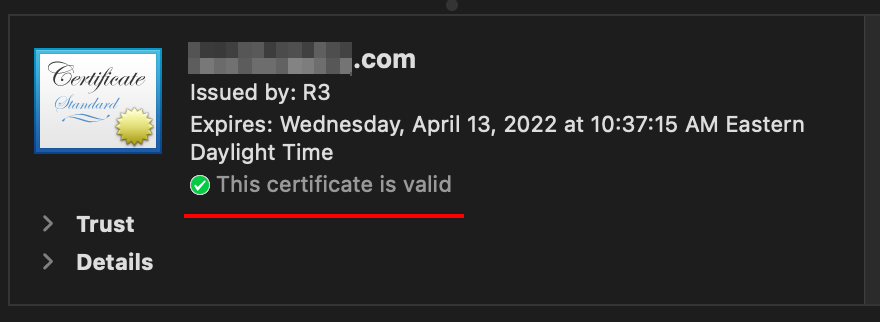
After setting your new Let's Encrypt certificate as the default certificate, reload a connection to the WebAdmin or WebMail and verify the Lock Icon appears in your Web Browser of choice. Selecting this and viewing the certificate will show your new certificate.
If the old certificate is still appearing, ensure that you have set the Let's Encrypt certificate as the default and Restart Kerio Connect to ensure this is properly used for new connections.
Frequently Asked Questions (FAQ)
Q1: Can I close Port 80 on my firewall and force Let's Encrypt renewals over HTTPS (Port 443) only?
Answer: No. The built-in ACME client in GFI KerioConnect uses HTTP-01 validation, which requires Port 80 for initial challenge requests. Blocking Port 80 completely at the perimeter firewall will cause automatic certificate renewals to fail.
Q2: Does enabling "Require encrypted connection" in KerioConnect break certificate renewals?
Answer: No. KerioConnect has a built-in exemption for ACME challenge URLs. Even with mandatory encryption turned on, Let's Encrypt validation requests on /.well-known/acme-challenge/ are handled over HTTP without being forcibly redirected.
Q3: Why does KerioConnect wait until 6 days before expiration to renew?
Answer: KerioConnect is configured with a 6-day window to ensure certificates stay valid while minimizing unnecessary renewal transactions. If a daily check fails, the server has multiple 24-hour retry opportunities before expiration occurs.
Priyanka Bhotika
Comments