Overview
You may experience an issue with the GFIAgent on your Kerio Connect server. The GFIAgent might be repeatedly attempting to log in as a user named .CloudAdmin, causing significant load on the server.
Another instance where this article is handy is if you are not using the GFI AppManager integration and you simply wish to disable the GFIAgent.
Information
As indicated in the Kerio Connect 10.0.2 Release Notes, this version (along with subsequent ones) implement GFI AppManager support. The integration relies on a few items in order to work:
- The .Cloudadmin account is special local account that is used by the Kerio appliance to facilitate the communication with GFI AppManager (What is the .CloudAdmin account in the Kerio logs?
- The GFI Agent log, where the integration logs are found (What is the Agent Log in Kerio Connect?)
- And the
tailscaleprocess (running by default from/usr/local/gfiagent/tailscaled) which facilitates the actual connection between your Kerio Connect appliance and GFI AppManager.
Solution
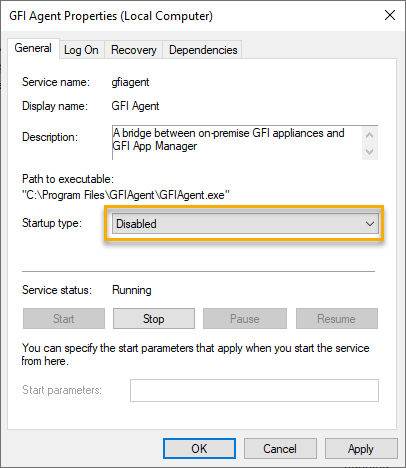
To disable the GFIAgent on your Kerio Connect server, follow these steps, depending on the host OS where Kerio Connect server is installed.
| Operating system | Steps | Why these steps matter |
|---|---|---|
| Windows |
|
Setting the startup type first prevents GFIAgent from starting again automatically after a reboot. Stopping the service then removes the active AppManager path for the current backup test. |
| Linux |
|
The stop command removes GFIAgent from the current session. The disable command prevents it from starting automatically at boot. |
| macOS |
|
The commands unload the GFIAgent launch daemon and stop it from being started again by the operating system. |
FAQ
- What is the GFIAgent on Kerio Connect server?
GFIAgent is a service that is used by GFIAppManager in Kerio Connect 10.0.2 and later. - How can I disable the GFIAgent on my server?
You can disable the GFIAgent by stopping and disabling the service at OS level and preventing it from starting in Kerio Connect. - What are the potential impacts of disabling the GFIAgent?
Disabling the GFIAgent will prevent the usage of GFI AppManager.
Ciprian Nastase
Comments