Overview
The Kerio Connect Greylist server may throw the error:"430 Too many failed STARTTLS attempts" occurs when Kerio Connect tries to query it, and you may see the below in your debug logs:
[17/Nov/2025 11:11:13][7580] {greylist} Greylisting: connected to reputation service (23.22.110.13:8045), timeout is 2 minutes, keepalive is not set.
[17/Nov/2025 11:11:14][7580] {greylist} Greylisting: service responded "100 Master Greylisting Server ready" over TCP.
[17/Nov/2025 11:11:14][7580] {greylist} Greylisting: Kerio Connect sent "STARTTLS" over TCP.
[17/Nov/2025 11:11:14][7580] {greylist} Greylisting: service responded "430 Too many failed STARTTLS attempts" over TCP.
[17/Nov/2025 11:11:14][7580] {greylist} Greylisting: reputation server 23.22.110.13 cannot establish secure connection: 430 Too many failed STARTTLS attempts.
[17/Nov/2025 11:11:14][7580] {conn} Closing socket 58284
[17/Nov/2025 11:11:14][7580] {greylist} Greylisting: closing connection to server 23.22.110.13
[17/Nov/2025 11:11:14][7580] {greylist} Greylisting: testing connection to greylisting service finished in 709 ms, result is CANNOT_CONNECT_GENERIC.
By default, Kerio Connect is using the greylist server with IP 23.22.110.13, and this issue is likely due to IP blocking by the greylisting service after repeated failed TLS negotiations. The solution involves redirecting the connection to an alternate greylisting server to restore functionality.
Troubleshooting Connection Issues
Before switching to the alternate greylisting server, perform these diagnostic steps to identify and resolve the underlying cause:
Step 1: Verify Network Connectivity
Test basic connectivity to the greylisting servers to ensure your network and firewall allow connections.
- Open a command prompt or PowerShell window
- Test connectivity to the primary greylisting server:
telnet 23.22.110.13 8045
You should see:100 Master Greylisting Server ready
- Test connectivity to the alternate greylisting server:
telnet 52.87.4.206 8045
Step 2: Verify Firewall Configuration
Ensure your firewall and security appliances allow proper communication with the greylisting service.
- Allow outbound connections to the following destinations on port 8045:
- 23.22.110.13 (primary greylisting server)
- 52.87.4.206 (alternate greylisting server)
- reputation-service.kerio.com (DNS name)
- If your firewall performs SSL/TLS inspection (Deep Packet Inspection), whitelist these IP addresses to prevent inspection of greylisting traffic
- Verify that no security appliances are interfering with connections on port 8045
- Check connection timeout settings - ensure they allow at least 2 minutes for connection establishment
Step 3: Request Greylisting IP Block Investigation from GFI Support
If you're seeing the "430 Too many failed STARTTLS attempts" error, your IP may have been blocked by the greylisting service after 10 failed attempts.
- Verify you've completed Steps 1-2 to ensure network/firewall issues are resolved
- Contact GFI Support with the following information:
- Your Kerio Connect server's public IP address
- The error message: "430 Too many failed STARTTLS attempts"
- Debug logs showing the failure (enable debug log messages for "Network Connections and SSL" and "Greylist")
- Confirmation that you've verified network connectivity and firewall configuration
Alternative Solution: Switch to Alternate Greylisting Server
If you've completed all troubleshooting steps above and the primary server still fails, you can switch to the alternate greylisting server. This solution redirects the connection to restore functionality.
-
Disable Greylisting: in Spam Filter > Greylisting settings, disable Check incoming messages by Kerio Greylisting Service > Apply.
-
Enable Greylisting debug messages (Enabling Debug Log Messages Types in Kerio Connect)
-
Navigate to the Kerio Connect store folder
-
Edit mailserver.cfg
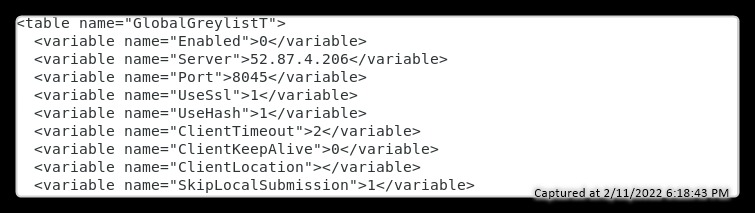
- Find the "GlobalGreylistT" table
- Insert
52.87.4.206to the "Server" variable of the "GlobalGreylistT" table. It should look like this:
-
Enable Greylisting: in Spam Filter > Greylisting settings, enable Check incoming messages by Kerio Greylisting Service > Apply.
-
Test the connection which should now be successful on the alternate server.
Frequently Asked Questions
- Q1: How do I know if my IP is blocked by the greylisting service?
- A1: You will see repeated "430 Too many failed STARTTLS attempts" errors in your logs, indicating that the greylisting service is rejecting connections from your IP.
-
- Q2: What should I do if the alternate server also fails?
- A2: If the alternate server fails, ensure that there are no network or firewall issues blocking the connection. Review your DNS and network settings to ensure proper configuration.
Q3: Can I revert the changes if needed?- A3: Yes, you can revert the changes by editing the
mailserver.cfgfile again and removing the alternate server IP, then restarting the Kerio Connect server.
Ciprian Nastase
Comments