Overview
The license key in Kerio Connect is specific for each OS (Windows, macOS, and Linux). If you are performing migration of Kerio Connect from one OS to another, you need to update the OS of your license key.
If there is an OS mismatch (wrong operating system), the error message is displayed: License is not for this operating system.
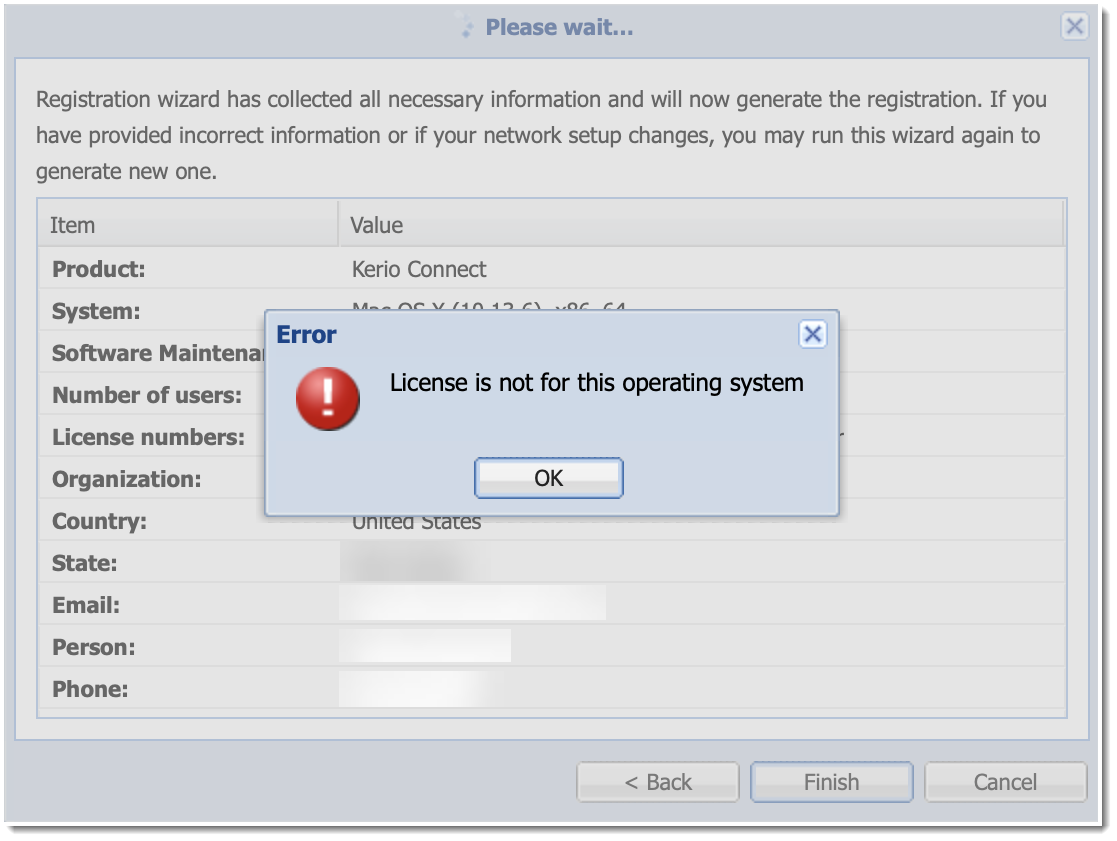
The license OS change is not required when upgrading OS, i.e. Windows Server 2008 R2 to Windows 2016.
Process
Note: Changing the operating system of the license takes only a few minutes. You do it yourself with the registration wizard below, which generates the new license.key file at the end, so there is no request to submit and no waiting time. A license key is valid for one operating system at a time: after the change, the old installation can show License is not for this operating system at its next license update (when you click Update registration info, or automatically within 48 hours) and then runs in trial mode until a matching license is installed. Change the license OS when you move to the new server, not while the old server is still in production.
-
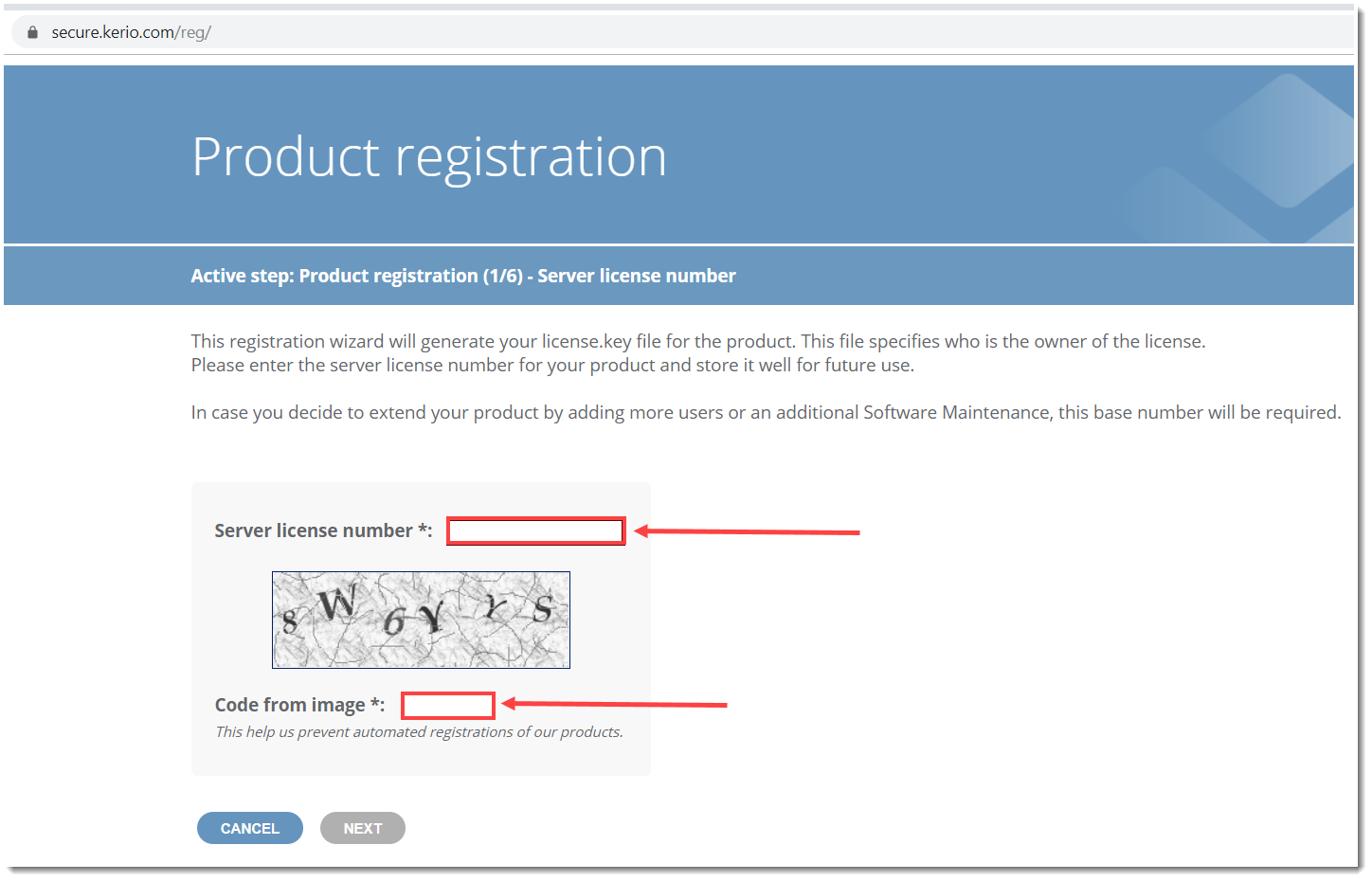
Launch the Product registration page.
-
Enter your Server license number and the Code from image (captcha).
-
Go through the wizard steps and select the OS.
-
In the end, download the
license.keyfile. -
Log in to the Kerio Administration Interface of the new server.
-
Click on the Status icon.
-
Go to the Dashboard.
-
Under the License Details section, click Install license.
-
In the Install License pop-up window, click Browse and select the downloaded
license.keyfile. -
Click OK.

Related Articles
Priyanka Bhotika
Comments