Overview
When setting up Two-Factor Authentication (2FA) in Kerio Connect (v9.4 and later), users may encounter the following error:
Failed to configure 2FA, error code: TFAANoSetupError.
This error occurs when Kerio Connect is unable to write the required 2FA attributes to Active Directory. There are two common causes: an outdated Kerio Active Directory Extensions (KADE) installation, or Kerio Connect being configured to use a Read-Only Domain Controller (RODC) as the Directory Service host.
In This Article
- Cause 1: Outdated KADE Installation
- Cause 2: RODC Configured as Directory Service Host
- Additional Information
- FAQ
Cause 1: Outdated KADE Installation
Two-Factor Authentication requires Kerio Active Directory Extensions (KADE) to write several Kerio-specific attributes to each AD user object. If an older version of KADE is installed, these schema attributes may be missing, preventing 2FA setup.
Resolution
Upgrade KADE to the latest version on all Active Directory servers:
- Download the latest KADE installer from the Kerio Software Archive.
- Run the installer on your Active Directory server(s).
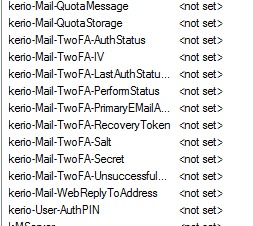
- The newer KADE extension introduced several fields in the directory to store 2FA information:
- Once installed, retry 2FA setup by following Enabling Two-Factor Authentication in Kerio Connect.
Cause 2: RODC Configured as Directory Service Host
When Kerio Connect is connected to a Read-Only Domain Controller (RODC), the initial 2FA setup fails because Kerio Connect must write the KADE 2FA attributes to Active Directory — and RODCs do not permit write operations.
This is a known architectural limitation: even if KADE is up to date and AD users can authenticate normally, 2FA setup will consistently fail if the configured Directory Service hostname points to an RODC.
Resolution
Change the Kerio Connect Directory Service configuration to point to a writable Domain Controller:
- In Kerio Connect WebAdmin, go to Configuration > Domains.
- Double-click the affected domain and open the Directory Service tab.
- In the Hostname field, replace the RODC address with the hostname or IP of a writable Domain Controller.
- Click Test Connection to verify the new host is reachable.
- Save the settings.
- Retry 2FA setup in Webmail or the Kerio Connect Desktop Client.
For full details on Directory Service configuration, see Connecting Kerio Connect to Directory Services.
Additional Information
Performance note: Some environments use an RODC specifically to improve authentication speed (e.g., when the writable DC is across a VPN). After 2FA setup is complete, you may switch the Directory Service host back to the RODC for day-to-day authentication. However, any future 2FA resets or re-enrollments will again require a writable DC to be configured temporarily.
Secondary DC workaround: Adding a writable DC as a secondary (backup) Directory Service host does not resolve this issue — Kerio Connect will attempt the write through whichever host is currently active and does not automatically fail over to a secondary for write operations.
FAQ
Q1: KADE is up to date and AD users can log in fine — why is 2FA still failing?
A1: If your Directory Service hostname points to an RODC, 2FA setup will fail regardless of KADE version, because RODCs cannot process the required attribute writes. Check whether your configured Directory Service host is an RODC and switch to a writable DC.
Q2: Can I use an RODC for authentication and a writable DC for 2FA at the same time?
A2: Not automatically. Kerio Connect uses one Directory Service host at a time for all operations. You would need to switch the hostname to a writable DC, complete 2FA setup, then switch back to the RODC if desired.
Q3: Where can I find the latest version of KADE?
A3: Download the latest KADE installer from the Kerio Software Archive. Both 32-bit and 64-bit installers are available.
Ciprian Nastase
Comments