Table of Contents
Overview
Use this article when Kerio Outlook Connector (Offline Edition) (KOFF) on a Windows workstation remains stuck at “Building Search index (0%)” and Outlook search does not become usable.
This article covers a specific root cause: Windows 8.3 short-name generation is disabled on the workstation, so the KOFF installation directory does not have a short path such as OUTLOO~1. KOFF’s local indexing process builds a Manticore search-index table and supplies the path to its stopwords.txt file. When that path contains spaces, such as Outlook Connector (Offline Edition), Manticore can interpret only the first space-delimited part of the path and fail with a truncated path such as C:/PROGRA~1/Kerio/Outlook. KOFF then retries indexing and the tray status can remain at 0%.
Use the scope check before applying the workaround. The general “Search index is offline” condition can also be caused by antivirus or incomplete KOFF installation/update problems. If your symptom is “Search index is offline” rather than “Building Search index (0%)”, or if you have not confirmed an 8.3 short-name problem, first review Outlook search not working: "Search index is offline".
Prerequisites
- Local administrator rights on the affected Windows workstation.
- Access to uninstall and reinstall Kerio Outlook Connector (Offline Edition).
- Outlook closed before you run the commands or uninstall KOFF.
- A maintenance window for the affected workstation. The reinstall recreates KOFF application files and the local Outlook/KOFF profile may need time to synchronize again after Outlook starts.
Solution
Confirm that this is the 8.3 short-name issue
Confirming the scope prevents unnecessary reinstall work. The fix below works because it causes Windows to create a valid 8.3 short name for the KOFF installation folder. If the folder already has a valid short name, a different KOFF search problem is more likely.
-
Close Outlook completely.
Why this matters: KOFF runs inside Outlook and uses local indexing components. Closing Outlook prevents the KOFF files and local indexing process from changing while you inspect or repair the installation.
-
Open Command Prompt as Administrator.
How: Open the Windows Start menu, type
cmd, right-click Command Prompt, and select Run as administrator. -
Check whether 8.3 short-name creation is enabled on the C: volume:
fsutil 8dot3name query C:
If the output says 8.3 name creation is disabled for C:, continue with this article.
-
Check whether the KOFF installation folder already has an 8.3 short name:
dir /x "C:\Program Files\Kerio"
If KOFF is installed under
C:\Program Files (x86), run this command instead:dir /x "C:\Program Files (x86)\Kerio"
-
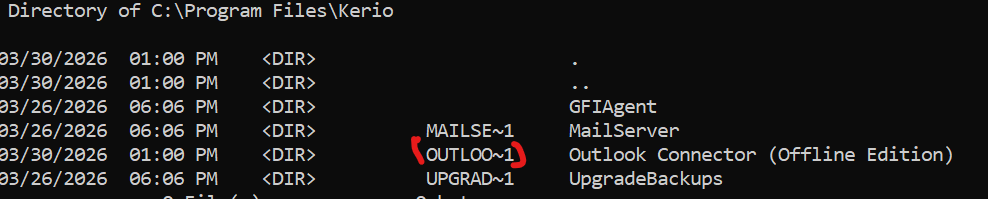
Look for the Outlook Connector (Offline Edition) directory in the output.
A healthy result includes a short-name column entry similar to:
OUTLOO~1 Outlook Connector (Offline Edition)
If the folder appears only as
Outlook Connector (Offline Edition)without a short-name value, the folder was likely created while 8.3 short-name generation was disabled. Continue with the repair steps.
Enable 8.3 short-name generation
These commands change Windows filesystem behavior. They do not rename existing KOFF folders by themselves. They allow Windows to create short names for folders that are created after the setting is enabled.
-
In the elevated Command Prompt, enable 8.3 short-name generation on the C: volume:
fsutil 8dot3name set C: 0
Why this works: KOFF needs Windows to provide a space-safe short path for its installation folder. Setting
C:to0enables 8.3 name creation for that volume. -
If Windows returns the following error, enable 8.3 short-name generation at the global filesystem-behavior level first:
Error -2147024592: Short name settings may not be changed on this volume due to the global registry setting.
Run:
fsutil.exe behavior set disable8dot3 0
Then confirm that 8.3 name creation is enabled for C::
fsutil 8dot3name query C:
Why this resolves the error: The global setting controls whether Windows can create 8.3 short names at all. Setting
disable8dot3to0enables 8.3 name creation globally, which removes the block that prevented the volume-level repair from taking effect.If the query still reports that 8.3 name creation is disabled, do not reinstall KOFF yet. Resolve the Windows setting first; otherwise the replacement KOFF folder can be created without the short name again.
-
Restart Windows if your environment requires a restart for filesystem-behavior changes or if the command output instructs you to do so.
Important: Do not stop after this step. If the KOFF folder was created while 8.3 naming was disabled, simply enabling the setting and reopening Outlook may leave the same folder in place without a short name.
Reinstall KOFF so the install folder receives a short name
The reinstall step is required because Windows creates 8.3 short names when folders are created. A folder that already exists without a short name may not automatically receive one just because you enabled 8.3 naming later.
-
Close Outlook and confirm it is not running.
-
Open Windows installed-apps management:
- Windows 10: Start > Settings > Apps > Apps & features
- Windows 11: Start > Settings > Apps > Installed apps
- Classic Control Panel path: Control Panel > Programs > Programs and Features
-
Uninstall Kerio Outlook Connector (Offline Edition).
If your installed-apps list also includes Kerio Updater Service and you are performing a full KOFF reinstall, uninstall it as part of the same maintenance window. The standard cleanup flow is also described in Reinstalling Kerio Outlook Connector.
-
After uninstalling, delete the leftover KOFF installation folder if it still exists:
C:\Program Files\Kerio\Outlook Connector (Offline Edition)
If KOFF was installed in the 32-bit program-files location, also check and delete:
C:\Program Files (x86)\Kerio\Outlook Connector (Offline Edition)
Why this matters: If you leave the old folder in place, the reinstall may reuse a directory that still lacks the required short name. Deleting the orphaned folder forces Windows to create a new folder after 8.3 name generation is enabled.
-
Reinstall Kerio Outlook Connector (Offline Edition).
To install the KOFF build that matches your Kerio Connect server, sign in to Kerio Connect Client, open Integration with Windows, and select Download Kerio Outlook Connector. For the full installation procedure, see Installing the Kerio Outlook Connector.
Verify the folder short name and search-index recovery
-
Before opening Outlook, verify that Windows created the short name for the KOFF folder:
dir /x "C:\Program Files\Kerio"
or, if applicable:
dir /x "C:\Program Files (x86)\Kerio"
-
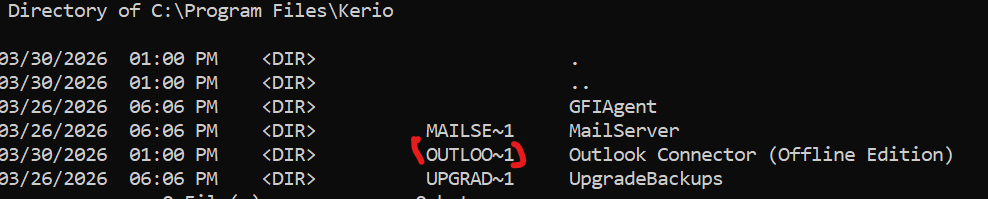
Confirm that the Outlook Connector (Offline Edition) folder has a short-name value such as
OUTLOO~1.Do not continue to Outlook until this is true. If the folder still has no short-name value, KOFF can continue to send a path with spaces to the local indexing engine, and the index may remain stuck at 0%.
-
Start Outlook with the KOFF profile enabled.
-
Allow KOFF time to initialize and rebuild the local search index.
Why waiting matters: KOFF must process local mailbox data before search is ready. The success condition is not immediate; the important sign is that the tray status progresses beyond “Building Search index (0%)” instead of staying permanently at zero.
-
Confirm that Outlook search returns results after indexing completes.
If KOFF is still stuck at 0%
If the folder has a valid short name and KOFF still remains stuck at “Building Search index (0%)”, collect evidence from one affected workstation before making additional changes. This prevents repeated reinstall attempts without knowing which component is still failing.
-
Capture the short-name and 8.3 state outputs:
fsutil 8dot3name query C:
dir /x "C:\Program Files\Kerio"
dir /x "C:\Program Files (x86)\Kerio"
If one of the
dir /xpaths does not exist on the workstation, include the output from the path where KOFF is installed and note that the other path is not present. -
Open services.msc and capture a screenshot showing the status and startup type of KOFFIndexingService.
-
Collect KOFF installation logs from the affected workstation:
- Press Windows + R.
- Enter
%temp%and click OK. - Copy files whose names begin with
kerio-connect. These are the KOFF/KCC installer logs. For details, see Collecting KOFF and KCC Installation Logs on Windows.
-
Collect the KOFF debug log from:
C:\Users\<user>\AppData\Local\Kerio\Outlook Connector
The folder is hidden by default in Windows Explorer. If needed, open File Explorer > View and enable hidden items. For detailed navigation, see Locating the KOFF Store and the Debug Files.
-
Collect
searchd.logfrom the Manticore store folder under the KOFF installation directory:C:\Program Files\Kerio\Outlook Connector (Offline Edition)\manticore\store
or:
C:\Program Files (x86)\Kerio\Outlook Connector (Offline Edition)\manticore\store
-
Contact GFI Support and provide the command outputs, screenshot, installer logs, KOFF debug log, and
searchd.log. Include the Kerio Connect version, KOFF version, Windows version, Outlook version, and whether the issue affects one workstation or multiple workstations.
Frequently Asked Questions
- Why does enabling 8.3 short-name generation alone not always fix the issue?
-
Windows creates 8.3 short names when directories are created. If the KOFF installation folder was created while 8.3 name generation was disabled, enabling the setting later may not add the missing short name to that existing folder. Reinstalling KOFF after enabling 8.3 name generation recreates the folder so Windows can assign a short name.
- Why does the folder short name matter to KOFF search indexing?
-
KOFF’s local search indexing uses a path to the Manticore
stopwords.txtfile under the KOFF installation directory. A short path avoids spaces in folder names. Without the short name, the path can includeOutlook Connector (Offline Edition), and the local indexing engine can fail while reading the path. - Will this delete mail from the Kerio Connect server?
-
No. The steps in this article repair the KOFF application installation on the workstation. Kerio mailbox data remains on the Kerio Connect server. Depending on the workstation state and whether the local Outlook/KOFF profile is rebuilt, the local cache may need time to synchronize again.
- Should I apply this to every workstation immediately?
-
No. Validate the procedure on one affected workstation first. After the pilot workstation shows a valid short name for the KOFF folder and search indexing progresses beyond 0%, use the same sequence for the remaining affected workstations.
Ciprian Nastase
Comments