Overview
Some users may experience an issue where their Outlook clients stop syncing via Exchange ActiveSync (EAS), despite mobile devices with EAS functioning correctly. This problem can affect various users with different operating systems and Outlook versions. It has been identified that the issue is related to a recent Outlook update, specifically Microsoft® Outlook® (Version 2401 Build 17231.20194).
Symptoms
-
Outlook clients using EAS show “Waiting for server response” or fail to connect.
-
After updating to Version 2401 Build 17231.20194 the sync stops working altogether.
-
A subsequent fix (Version 2403 Build 16.0.17425.20176) restored some functionality, but many users now report a one‑way calendar sync: calendar items created or edited in Outlook do not appear in the server/webmail, though items created on the server or mobile appear in Outlook.
-
This issue was also investigated by the Kerio Connect Development team, and it was revealed that when a user creates or updates calendar item, Outlook does send a request, however it's sync request to get updates in account folders, not a sync request containing updated item.
-
This same issue has been reported by other non-Kerio Connect users in the Microsoft or external forums:
Solution
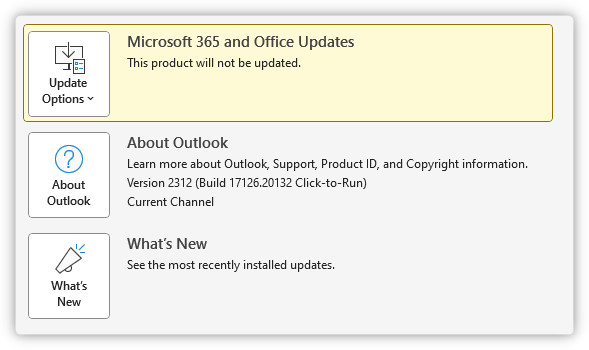
First of all, please confirm that the affected clients are running the affected build. This can be verified by going in Outlook > File > Office Account:
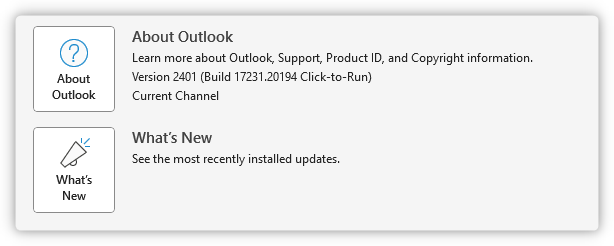
If the build installed is 2401, then the issue you are experiencing is caused by this Outlook update.
Please also take note of the channel (Current Channel, Monthly Enterprise Channel etc.), and the version details in the About Outlook section:

To resolve this issue, please choose one of the below approaches, depending on your requirements.
Recommended full working solution: Switching clients from EAS to KOFF
An alternative means of overcoming this behavior is to switch the affected Outlook clients to the Kerio Outlook Connector (KOFF).
Since KOFF does not use ActiveSync, which is impacted by this Outlook behavior, there should be no sync issues. Proceed with Installing the Kerio Outlook Connector, after which, you can proceed with Creating Kerio Outlook Connector (KOFF) Profiles in Microsoft Outlook Manually.
Partial solution: Upgrade Outlook to latest version
Therefore, please proceed to upgrade Outlook to the latest available version in order to benefit from the fix.
📌 Upgrading Outlook to latest version will fix EAS syncing, however, you will still experience one-way calendar sync, while the rest of the functions continue to work.
If you absolutely need to stay on ActiveSync, please proceed with the below.
Last Resort: Downgrade Outlook
The first thing that needs to be done is to temporarily disable Outlook updates, because if they are enabled, Outlook will automatically update itself back to the broken version after you revert to the previous one:
- Launch your Outlook application and go to File > Office Account > Update Options > Disable Updates
- The updates should remain disabled until Microsoft announces a fix for this issue
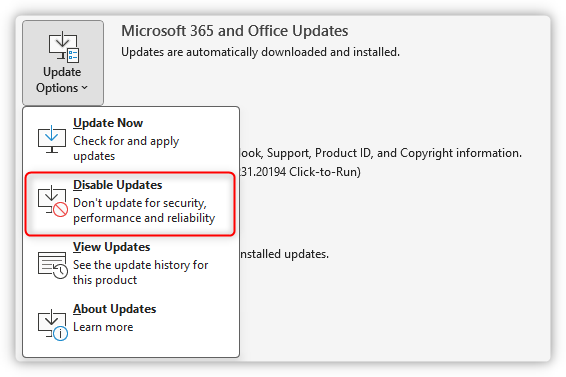
After the updates are disabled, you can proceed with reverting to an older Office version:
- Visit the Update history for Microsoft apps page to find the previous version number. Refer to the channel that was identified previously, and take note of the previous version number.
- For the Current channel, it will be Version 2312 (Build 17126.20132)
- Click the Windows Start button and type in CMD for Command Prompt option to appear. Right-click on it and Run as administrator.
- In the command prompt input the following command, using the below pointers, as it may need fine-tuning, depending on a number of environmental factors:
"C:\Program Files\Common Files\microsoft shared\ClickToRun\OfficeC2RClient.exe" /update user updatetoversion=16.0.17126.20132- The above command is for 64-bit Outlook. 32-bit Outlook installations will be located in
C:\Program Files (x86)\path - The
updatetoversionparameter is constructed from the major version found in About Outlook, to which you need to append the build number retrieved from the Update history for Microsoft apps.
- The above command is for 64-bit Outlook. 32-bit Outlook installations will be located in
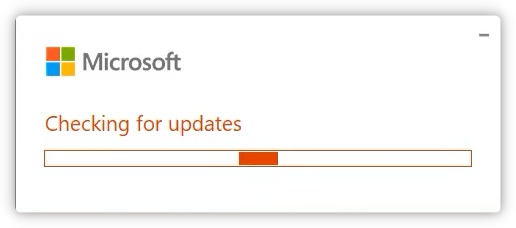
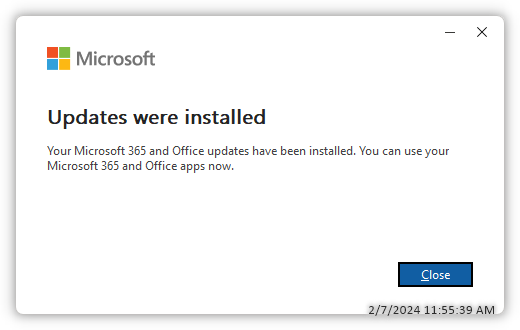
- If everything is entered correctly, you will see the Microsoft window initiating the revert process and ultimately install the desired Outlook version
- Make sure to agree to everything the update process asks of you. That could be closing any Office apps you haven't closed or any other apps that are interfering with the revert process. After a short while, the revert process will be finished, launch the Outlook application to confirm that the revert happened successfully and that you can now sync your EAS account
- Make sure to agree to everything the update process asks of you. That could be closing any Office apps you haven't closed or any other apps that are interfering with the revert process. After a short while, the revert process will be finished, launch the Outlook application to confirm that the revert happened successfully and that you can now sync your EAS account
- Make sure to check for updates manually after few days to see if Microsoft fixed the issue with the latest version
- When you see Microsoft fixing this issue, please re-enable the updates and the click on Update Now
Summary
Outlook clients not syncing via Exchange ActiveSync can be a result of a recent Outlook update. The issue can be resolved by either downgrading Outlook to a previous version or switching to using KOFF: Kerio Outlook Connector.
FAQ
- What is Exchange ActiveSync (EAS)?
Exchange ActiveSync is a protocol that allows mobile devices to synchronize email, calendar, contacts, and tasks with an Exchange server. - What is KOFF: Kerio Outlook Connector?
KOFF is a plugin for Microsoft Outlook that allows users to synchronize emails, contacts, tasks, and calendars with a Kerio Connect server. - How can I downgrade my Outlook version?
You can downgrade your Outlook version by running a specific command in cmd (Command Prompt), and specify the Outlook version that you want to downgrade to
Ciprian Nastase
Comments